XBert MCP - Your Trusted Layer
Model Context Protocol (MCP) is a secure, standard way for Claude, ChatGPT or whichever AI you use to connect to the software your practice already runs, and work with it on your behalf.



In Claude or ChatGPT's settings, add a custom connector with one address: mcp-gateway.xbert.io/mcp.
That's the whole technical bit.
A browser window opens and you sign in with your XBert account. Your assistant gets your permissions, no more, no less, and your credentials stay with XBert.
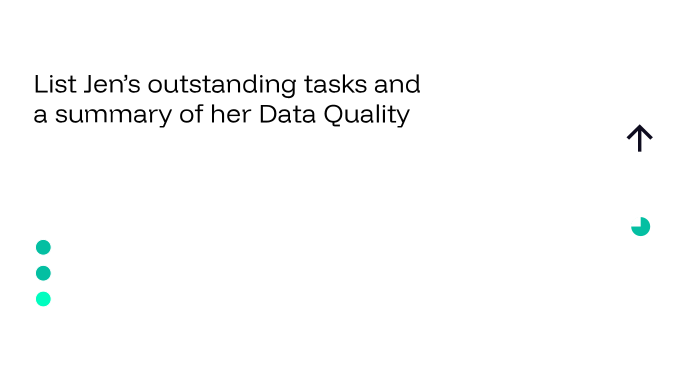
Ask it the way you'd ask a colleague. “Who owes us the most?” and “who's over capacity next week?” work better than anything technical ever will.
Ask it like you'd ask your best senior
Start with the work, not the technology. Every practice has the same Tuesday-morning questions - some about a client's books, some about how the practice itself is tracking.
See which clients are BAS/VAT ready
One prompt turns XBert's checks into a BAS/VAT readiness board for your whole practice. Unreconciled lines, GST/VAT coding, missing receipts and the GST/VAT position, client by client, before anyone opens a BAS.

One product, two surfaces
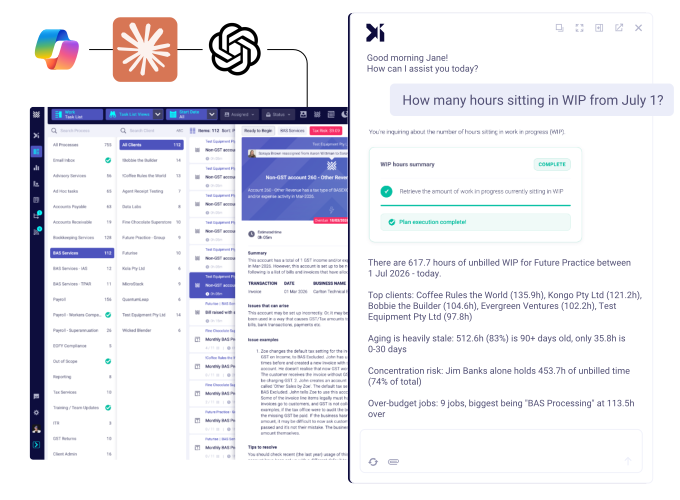
Everything your assistant does also lives as a screen inside XBert - same data, same rules, same audit trail. Chat for ad-hoc questions; the app for daily operations and team visibility.
Letting an assistant near the books is a big step. Every write is validated and checked for duplicates first, and marked as a change to confirm - your assistant stops and asks before it submits.
What XBert guarantees: your exact permissions, real validation, and an audit-log entry on every action.
★★★★★

Every Client, Every Job.
One Question Away.
Manage your practice with XBert. Connect MCP. No code, no API keys - just sign in and start asking.
What is the XBert MCP?
Do I need to be technical to use it?
Which AI assistants work with it?
Is my client data safe?
Can the assistant change my clients' books without me?
Which clients can my assistant work with?
Do I need a new account or login?
How do I remove or manage access?
Where do I go to connect?
What can my assistant actually do with XBert?